In my projects, I keep seeing Power Automate flows being created directly in an environment. This means that they are outside of a solution. The flow doesn’t care where it runs, but there are at least three good reasons to package flows in a solution and work with them. This article introduces these tree advantages. These apply even if you don’t have multiple environments, which is often the reason to work with solutions in the first place.
Note: The benefits described here are only possible if you work with https://make.Powerautomate.com. In all other sites, including https://make.PowerApps.com it doesn’t work! In addition, you must use the (not quite) new editor. Unfortunately, there are some triggers with which this is not possible. You also absolutely need a Dataverse database in your environment.
What are solutions?
Solutions are a logical container that contains artifacts from the Power Platform. These artifacts can be Power Apps, Flows, Dataverse content, and more. These solutions can be exported from an environment and imported into a target environment. This also makes it possible to get an overview of which adjustments have been made and for which period. Solutions can also be versioned, which makes it even easier to manage. Solutions require a Dataverse database.
First advantage: More actions
If a flow is outside of a solution and you try to start another flow, this is associated with a lot of effort or even completely impossible. If the flow is in a solution, there is a corresponding action for it. We can find this action, called Run a Child Flow, in the Flows group. This is the only action there.

Only a flow within the same solution can be started and you need the rights for that flow.
Attention: Currently it is not possible for me to configure the action in the new editor, I can only do this in the classic editor. In the new editor, I can’t select a child workflow. So you have to switch back and forth in development.
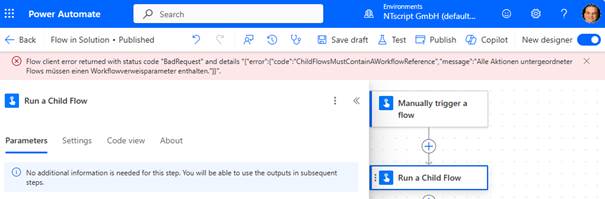
There is a lot more to consider on this topic, the following article explains this: https://learn.microsoft.com/en-us/power-automate/create-child-flows An addition: The sub workflow requires the action „Respond to a Power App or flow“. However, this action is not easy to find. You must enter „Power Apps“ in the search for a connector and do it exactly like this. If you search for PowerApps (without spaces), you’ll find some connectors for Power Apps, but the one we wanted isn’t there.
Second advantage: Versioning a flow
When a flow is created in a solution, it is versioned. Drafts can be saved and flows can be published selectively. It is also possible to jump back to a previous version. A flow is added to a solution like any other artifact.
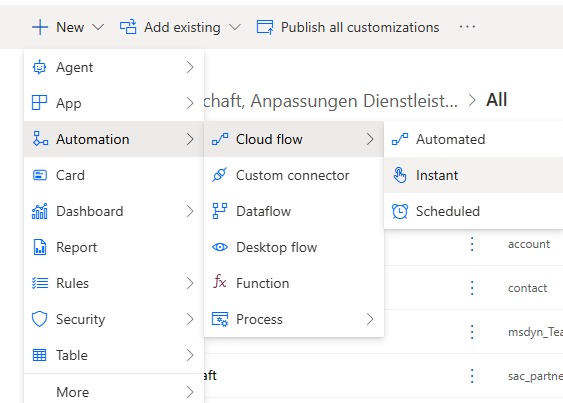
Attention: I always have the problem that when I create a flow in the solution, the old editor is opened. The alternative is to first create the flow outside the solution and then import it into it.
The versioning controls are located at the top right, where save, test, etc. are already located.

Now, when a flow is saved, a minor version or draft is saved. This cannot be executed it must first be published with Publish. This also means that if you already have a published version, and you save it and want to test it, it will NOT run what you have just saved. The last published version will be executed. Before you want to test, the flow must be published via Publish.
You can use the clock icon on the left of the Flow checker action to jump back to an earlier version.

Third benefit: Change (co)ownership of a flow
In a flow outside of a solution, I can specify accounts that can change the flow with it but not change the owner. Only an owner can change the rights of a flow and delete them. But with a flow in a solution, I can also change the owner. To do this, go to the administration page of the flow and enter or change the co-owner in the Co-owners section by clicking on Set primary owner.

Make sure that the new owner also has the correct licenses for the flow. In my screenshot, this is not the case.

Summary
When developing flows, they should always be used in a solution. It has no disadvantages and only brings advantages. Have you already worked with Flow in solutions?
If you would like to learn more about Microsoft Flow, you are welcomed to attend a seminar I’ve created. I offer these once as a seminar for people with an IT background and once for people without an IT background. Get in touch with me.
 Nico Thiemer - SharePoint Enthusiast seit 2001